Fleet Vehicles, Seat Maps & Boarding Stations
The Fleet & Stations module allows fleet managers, maintenance coordinators, and station managers to manage vehicles, configure seating layouts, and maintain physical boarding points across your company workspace.
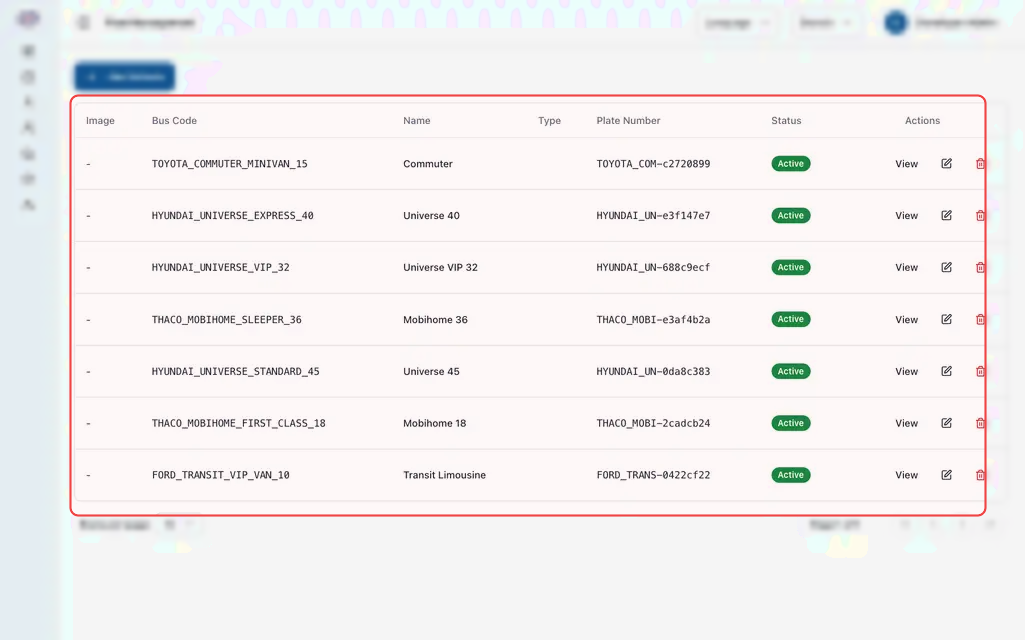
1. Registering Fleet Vehicles
Each physical bus or van in your operation must be registered with its license plate, model category, and seating capacity.
Step-by-Step Vehicle Registration
- In the left navigation, open Operations and click Buses.
- Click Add Bus in the top toolbar.
- Vehicle Details:
- Plate Number: Official vehicle registration (e.g.,
3E-4921 PPor3A-8842 SR). - Bus Model: Select or type the coach brand and model (e.g., Hyundai Universe Luxury, Scania Touring, Ford Transit VIP).
- Vehicle Code / Internal Number: Optional internal fleet identifier (e.g.,
BUS-08).
- Plate Number: Official vehicle registration (e.g.,
- Select Seat Layout Template:
- Choose the matching seating template (e.g., 40-Berth Double Deck Sleeper, 28-Seat VIP Luxury, or 15-Seat Minivan).
- Passenger Amenities:
- Check all available on-board amenities:
- 📶 High-Speed Wi-Fi
- 🔌 Individual USB / Power Outlets
- 🛏️ Reclining Sleeper Bed / Blanket
- 💧 Complimentary Bottled Water
- 🚻 Onboard Restroom (Amenities appear as visual badges to passengers during ticket selection).
- Check all available on-board amenities:
- Click Save Bus.
2. Understanding Seat Layout Templates
The platform uses visual seat templates so ticket counter staff and passengers see exact physical layouts:
In double-deck coaches, Lower Deck berths (L1-L10) are often preferred by elderly travelers and families, while Upper Deck berths (U1-U10) offer quieter travel.
3. Configuring Physical Boarding Points & Stations
Boarding points are the physical locations where buses stop to pick up or drop off passengers:
Creating a Boarding Point
- Under Operations, click Boarding Points.
- Click Add Boarding Point.
- Location Details:
- Stop Name: A clear name shown on tickets (e.g., Phnom Penh Central Station — Platform 1, or Kampong Speu Highway Rest Stop).
- Branch / City: The geographic hub governing this station.
- Stop Type: Terminal Office, Roadside Junction, Rest Area, or Hotel Drop-off.
- Passenger Directions & Contact:
- Address & Landmarks: Describe clear physical directions (e.g., "Opposite Total Petrol Station, 200m North of Night Market"). These instructions print directly on passenger tickets and SMS alerts.
- Station Contact Phone: Station manager or ticket booth phone number.
- Click Save Boarding Point.
4. Vehicle Status & Maintenance
Fleet vehicles operate under three primary statuses:
- Active: Bus is fully operational and available to be assigned to daily departures.
- In Maintenance: Bus is undergoing scheduled servicing, tire replacement, or repairs. Setting this status automatically hides the bus from schedule assignment dropdowns, preventing dispatchers from assigning a vehicle that is in the workshop.
- Retired: Vehicle sold, decommissioned, or permanently taken out of service.
Frequently Asked Questions
Can I change the seat layout of a bus after it has been used?
If a bus has already been assigned to upcoming trips with confirmed passenger bookings, its seat layout cannot be modified. Changing the layout would displace confirmed seats. To introduce a new layout, create a new vehicle record or reassign affected trips first.
A single seat recliner is broken on a bus. Do I have to take the whole bus out of service?
No. You do not need to mark the bus as "In Maintenance". Instead, dispatchers can lock that specific seat on upcoming departure manifests, marking it as unavailable for sale until maintenance fixes the seat.
Can a boarding point be deleted if it is no longer used?
If a boarding point is actively linked to existing scheduled routes or upcoming passenger tickets, the system prevents deletion to protect passenger manifests. First remove the stop from your route segments under Operations > Routes, then delete the boarding point.