Routes, Schedules & Trip Dispatch
The Operations section is where dispatchers, fleet coordinators, and station managers configure travel corridors, automate recurring departure timetables, and oversee daily bus departures.
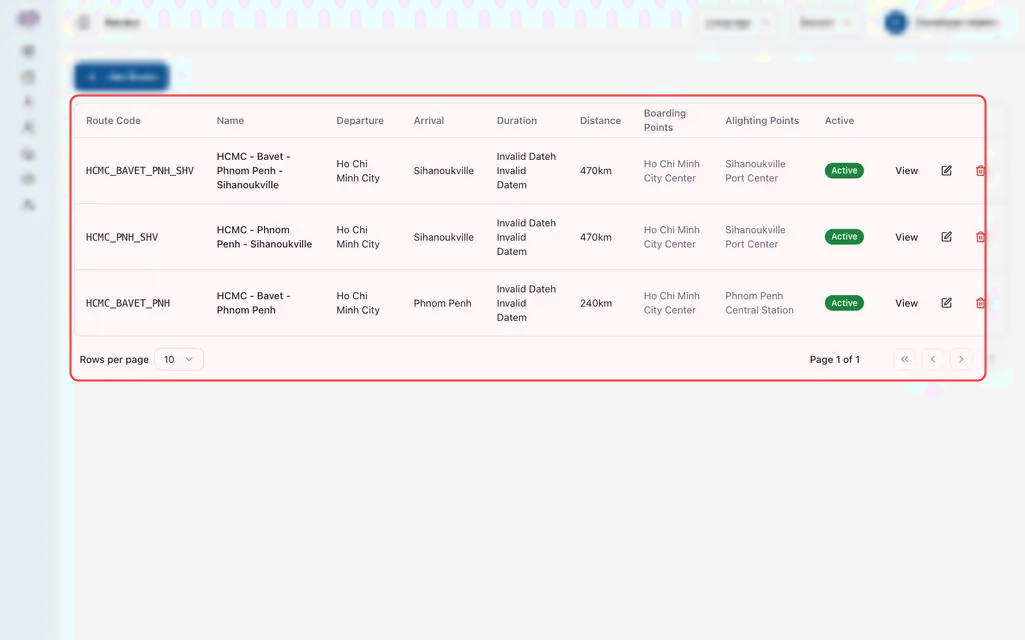
1. Creating a Travel Route Corridor
A route defines the physical travel corridor between two or more bus stations, including intermediate roadside pickups, distances, and segment fares.
Step-by-Step Route Setup
- In the left navigation, open Operations and click Routes.
- Click Add Route in the top toolbar.
- Boarding Points Tab:
- Select your starting terminal (Origin), such as Phnom Penh Central Station.
- Add any intermediate stops in exact travel sequence (e.g., Kampong Speu Junction, Preah Sihanouk Gate).
- Select the final terminal (Destination), such as Sihanoukville Port Station.
- Segment Configuration Tab:
- For each leg between stops, enter the driving distance in kilometers and estimated driving duration (in hours and minutes).
- Enter the layover wait time (e.g., 10 minutes) for intermediate passenger pickups.
- Set the individual passenger fare for each segment.
- Summary Tab:
- Give the route a clear title (e.g., Phnom Penh — Sihanoukville Express). The system automatically calculates total distance, total transit time, and base full-trip fare.
- Click Save Route.
2. Setting Up Departure Schedules & Templates
Rather than creating daily bus trips by hand, create Schedule Templates that automatically generate bookable departures for days, weeks, or months in advance.
Step-by-Step Schedule Creation
- Under Operations, click Schedules (or Schedule Templates).
- Click Add Schedule (or Create Template).
- Select the Route (e.g., Phnom Penh — Siem Reap).
- Assign the default Bus Model (such as 40-Seat VIP Sleeper).
- Enter the Departure Time (e.g.,
08:00 AMor23:30 PM Night Coach).- The system automatically calculates the expected arrival time based on the route driving duration and stop layovers.
- Set Recurrence:
- Check the active Days of Week (e.g., Monday through Sunday for daily service, or Friday/Sunday for weekend expresses).
- Select the Valid From and Valid Until date range (e.g., 01-Jan-2026 to 31-Dec-2026).
- Review segment ticket pricing and click Save. Daily departures are automatically generated and made available on ticket counters and online booking portals.
3. Daily Trip Operations & Dispatch
Each scheduled departure becomes an active daily Trip that station dispatchers manage on departure day:
Trip Status Lifecycle
- Scheduled: The trip is open for ticket sales and seat reservations.
- Boarding: 30 to 45 minutes before departure, station staff open check-in. Ticket QR codes can be scanned on mobile check-in devices or verified manually.
- Departed: The bus has pulled out of the station. Ticket counters can no longer sell seats or reschedule passengers onto this departure.
- Completed: The bus has arrived at the final destination terminal.
- Cancelled: Trip called off due to extreme weather or road closures. All booked passengers receive automated alerts and are eligible for refunds or free transfers.
Printing the Driver Manifest
Before a bus departs, station dispatchers must hand a printed manifest to the driver and bus attendant:
- Under Operations, open Trips and locate today's departure.
- Click View Manifest (or the printer icon).
- The printed manifest lists:
- Total passenger head count and seat layout map.
- Passenger names, ticket reference numbers, and contact mobile phones.
- Specific pickup and drop-off stations for each traveler.
- Special remarks (such as oversized luggage, bicycles, or special passenger assistance).
4. Handling Operational Disruptions & Bus Swaps
Emergency Bus Swap (Mechanical Breakdown)
If an assigned coach suffers a mechanical failure before departure:
- Open the trip record under Trips and click Reassign Vehicle.
- Select the replacement bus from your available fleet.
- Verify Seat Compatibility:
- Same Layout: All passenger seats map directly without changes.
- Different Layout (e.g., swapping a 40-seat sleeper for a 36-seat coach): The system highlights any displaced seat numbers so staff can reassign affected passengers before boarding begins.
- Print an updated manifest for the driver.
Schedule Delay Notification
If road conditions or highway traffic delay a departure by more than 15 minutes:
- Open the trip in Trips and click Update Departure Time.
- Enter the revised departure time.
- Check Send Passenger Notification and click Save. The system sends automated SMS alerts to all ticket holders on that trip.
Operations FAQs
How far into the future are trips created from schedule templates?
The system automatically generates trips 60 days ahead of the current date. As days pass, new future dates roll forward automatically without requiring manual staff intervention.
If I update route pricing, what happens to existing tickets?
Changing route or segment prices applies strictly to future ticket sales. All previously purchased tickets retain their original fare and payment records.
Can staff sell tickets on a bus that has already started boarding?
Yes. As long as the trip status remains in Boarding and empty seats are available, counter clerks can issue last-minute walk-in tickets. Sales close only when the dispatcher marks the trip as Departed.