Staff Accounts & Branch Access
The Admin Users module allows company administrators to provision staff accounts, assign physical branch offices, reset passwords, and control access permissions across your company workspace.
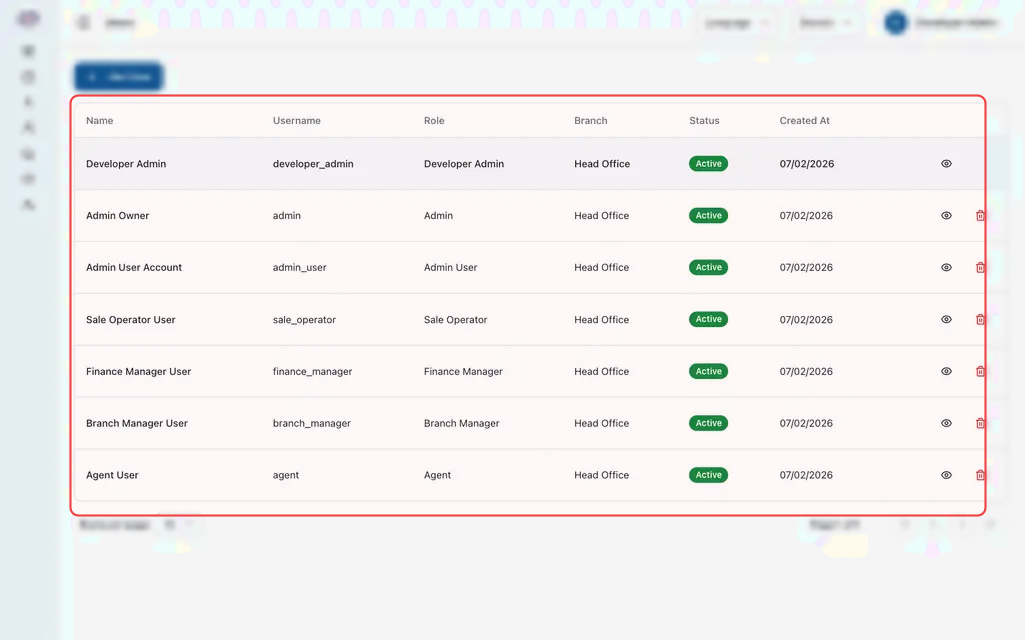
1. Onboarding a New Employee
The platform uses manual administrative provisioning. There is no self-registration or public invite link; administrators create accounts and distribute credentials directly to staff.
Step-by-Step Account Creation
- In the left navigation, click Admin Users.
- Click Add User in the table toolbar.
- Personal & Login Details:
- First Name & Last Name: Employee's real name (used on printed ticket receipts and driver manifests).
- Username: Unique sign-in name (3 to 50 characters, e.g.,
sokha.ppordara_counter). - Password: Initial password (minimum 8 characters).
- Role Assignment:
- Select the operational role from the dropdown (e.g., Sale Operator, Branch Manager, Finance Manager, or Admin).
- Physical Branch Assignment:
- If assigning branch staff (such as a counter clerk or station manager), select their physical Branch (e.g., Phnom Penh Central, Siem Reap Station, or Battambang Branch).
- (If creating an external agency user, select their Agent partner profile instead of a branch).
- Click Create Admin. Share the login credentials with the employee.
2. Understanding Branch Isolation
Assigning staff to a specific branch office keeps operations clean and secure:
- Ticket Sellers & Cashiers: Counter staff assigned to Siem Reap Branch will automatically default to selling seats originating from Siem Reap, balance cash collected at that specific counter, and view departures from their station.
- Branch Managers: Can oversee all ticket clerks, daily sales manifests, and cash drawer reconciliations within their assigned station, but cannot modify departures or rates from other branch locations.
- Head Office & Super Admins: Staff with unassigned or HQ roles see company-wide aggregated totals and can switch between branch views using the top filter dropdown.
3. Password Resets & Account Updates
When an employee forgets their password or changes phone numbers:
- Locate the employee in the Admin Users table using the search box.
- Click the Edit (pencil) icon on their row.
- To reset a password:
- Enter a new temporary password in the Password field.
- Inform the employee of their new temporary password. (When updating other profile details without changing the password, simply leave the password field blank).
- Click Save Changes.
4. Deactivating & Restoring Staff Accounts
Deactivating an Employee (Offboarding)
When a staff member leaves the company or goes on extended leave:
- Locate their row in the Admin Users table.
- Click the Delete / Deactivate (trash) icon.
- Confirm the action in the prompt.
- The account status switches to Inactive, and the employee's active session is terminated immediately.
Deactivating an account never deletes historical sales data. All past passenger bookings, cash collections, and ticket modifications remain permanently credited to that staff member's username in audit reports.
Restoring a Deactivated Employee
If an employee returns to work:
- Click Add User.
- Enter their original username and fill in the required fields.
- Click Create Admin.
- The system detects the inactive record and asks: "This username belongs to a deactivated user. Do you want to restore it?"
- Click Restore. The account is restored with their updated role and branch assignment.
Frequently Asked Questions
Can an administrator deactivate their own account?
No. The system includes a self-deactivation guard that prevents logged-in users from deleting or deactivating their own account. Another administrator must perform account updates if needed.
Can a counter clerk see other ticket sellers' sales?
Front-desk operators and ticket sellers can only see their own issued tickets and daily sales totals. Only Branch Managers and Finance staff have permission to audit sales across all counter sellers.
Why does the Branch dropdown disappear when I select the "Agent" role?
Agency users belong to external partner agencies rather than company-owned physical branch terminals. When you select the Agent role, the form automatically replaces the branch selector with the agency partner dropdown.