General Settings, Branding & Exchange Rates
The Settings module allows company executives and administrators to customize company branding on printed tickets, configure booking reference prefixes, update daily currency exchange rates, and protect system security.
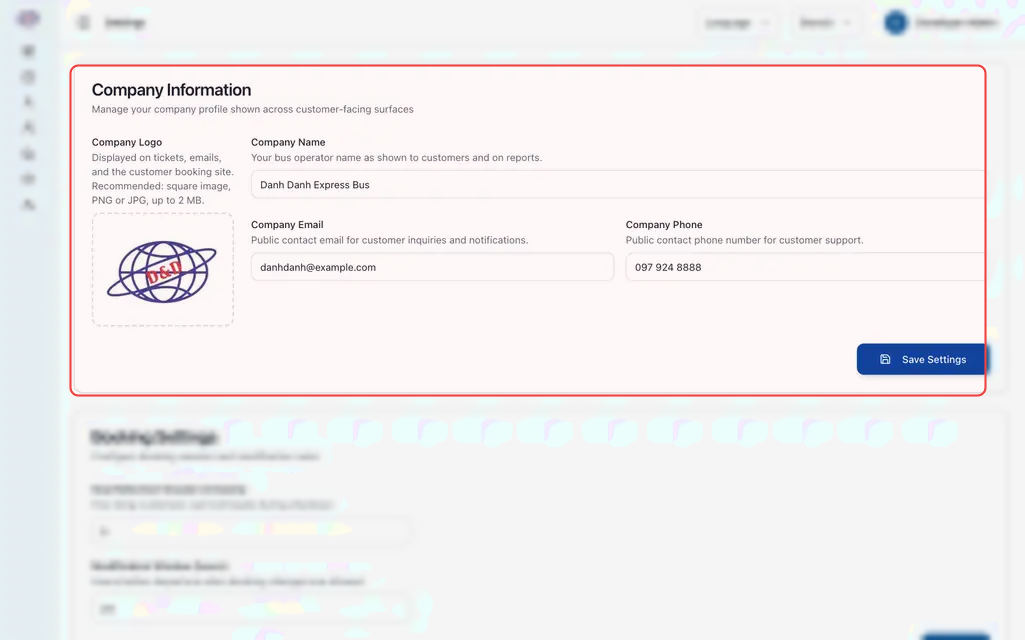
1. Company Profile & Passenger Branding
The details entered here display directly on customer-facing documents, printed thermal receipts, and automated SMS messages:
Updating Profile Details
- In the left navigation, click Settings.
- Under Company Profile:
- Company Name: Official registered company name printed at the top of tickets.
- Support Phone & Email: Customer care hotlines printed on passenger receipts for lost luggage or schedule inquiries.
- Head Office Address: Physical headquarters address shown on invoices.
- Upload Company Logo:
- Upload a clean, high-contrast logo (PNG or SVG format).
- This logo prints on A4 booking vouchers and renders in full color on customer mobile booking portals.
- Click Save Settings.
2. Booking Rules & Ticket ID Prefixes
Under Booking Settings, configure how reservations are created and numbered:
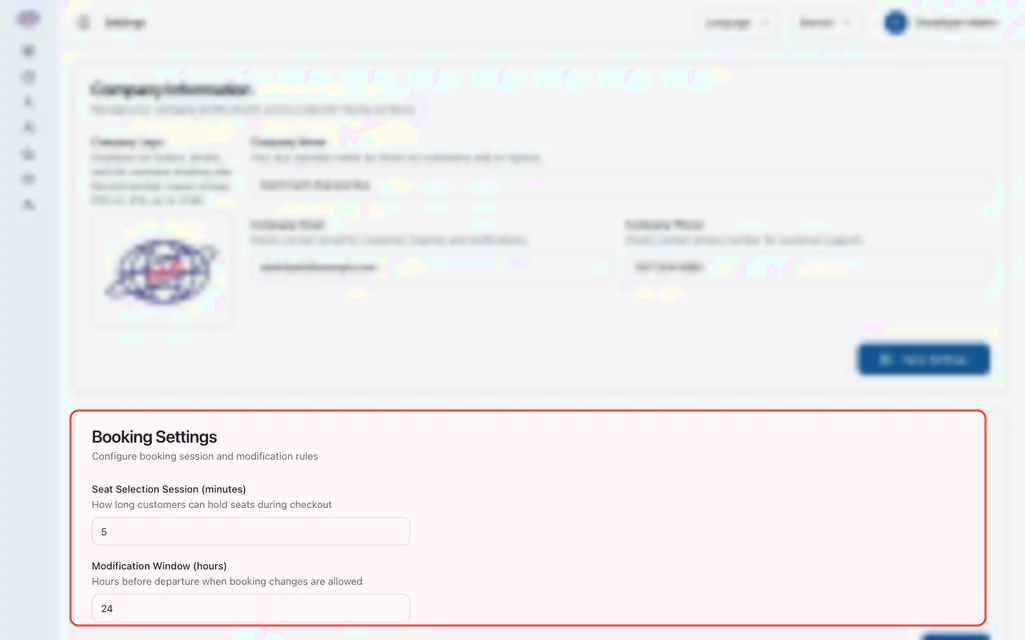
- Booking ID Prefix: Custom characters added to the start of new ticket numbers (e.g.,
EXP-produces references likeEXP-10492). Updating the prefix applies only to future bookings. Past ticket numbers remain unchanged for audit integrity. - Max Bookings Per Customer: Limits the number of active uncompleted bookings a single customer account can hold simultaneously, preventing automated scalping during holiday rush periods.
- Auto-Confirm Online Bookings: When enabled, customer bookings with successful online payments (such as Bakong KHQR) are confirmed immediately without waiting for manual counter review.
3. Managing Currency Exchange Rates (USD & KHR)
Bus operations in Cambodia regularly handle both US Dollars ($) and Cambodian Riel (៛). To ensure ticket pricing and cash drawer accounting remain accurate:
- Under Settings, click Exchange Rates.
- Review Current Rates:
- View the active exchange rate (e.g.,
1 USD = 4,100 KHR).
- View the active exchange rate (e.g.,
- Update Exchange Rate:
- Click Add Rate or Update Rate.
- Enter the new rate and select the effective date.
- Click Save.
- Counter Impact:
- When a ticket seller rings up an $8.00 ticket, the counter screen instantly shows the KHR equivalent (
32,800 ៛). - If a passenger hands the clerk 40,000 ៛, the system calculates exact change in either currency.
- When a ticket seller rings up an $8.00 ticket, the counter screen instantly shows the KHR equivalent (
Updating today's exchange rate does never recalculate historical sales or change settled ledger entries from previous days.
4. Security Timeouts & Maintenance Mode
Under Security & Maintenance:
- Session Timeout: Set the number of inactive minutes (e.g., 30 minutes) before unattended terminals automatically sign out, protecting ticket counters during shift breaks.
- Max Login Attempts: Specify how many failed password attempts (e.g., 5 attempts) lock an account to protect against brute-force attacks.
- Maintenance Mode:
- Used during major timetable overhauls or station system upgrades.
- Toggling Maintenance Mode ON pauses public customer booking portals and displays a friendly notice.
- Counter staff can still issue emergency walk-in tickets from station terminals while maintenance mode is active.
5. Developer & Partner API Keys (Warning for Staff)
Under Settings > API Integrations:
This section generates secure access credentials for external Online Travel Agencies (OTAs), hotel reservation systems, and mobile apps.
Do not delete, regenerate, or modify API keys in this section without direct coordination with your IT and partnership teams. Regenerating an active key immediately severs third-party ticket sales channels.