Shift Overview & Daily Dashboard
The Dashboard is the first screen you see after signing in. It gives ticket clerks, branch supervisors, and managers a live snapshot of today's bus operations, ticket sales, and departure occupancy across your company workspace.
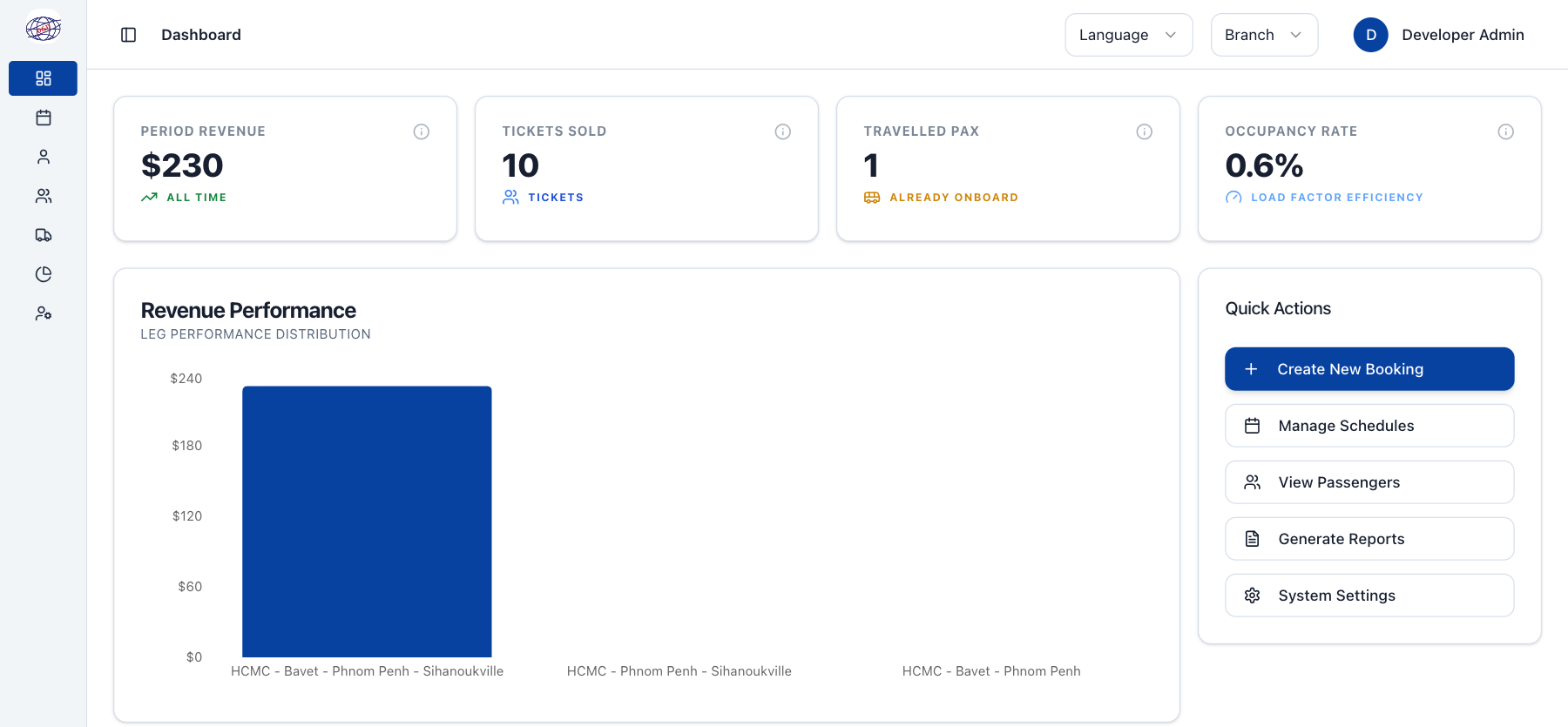
The 3-Minute Shift Start Routine
When opening your ticket counter or starting your dispatch shift:
- Verify your assigned branch: Confirm that your branch name appears in the top navigation bar. If you work at the Phnom Penh Central branch, your sales metrics and trip lists default to that location.
- Review today's occupancy: Check the Occupancy Rate card to see if upcoming morning departures are full or have seats remaining for walk-in travelers.
- Scan the Booking Audit Feed: Glance at recent reservations to spot any unconfirmed bookings or pending customer payments that require follow-up.
- Use Quick Actions: Click Create Booking to start selling tickets immediately without hunting through menu trees.
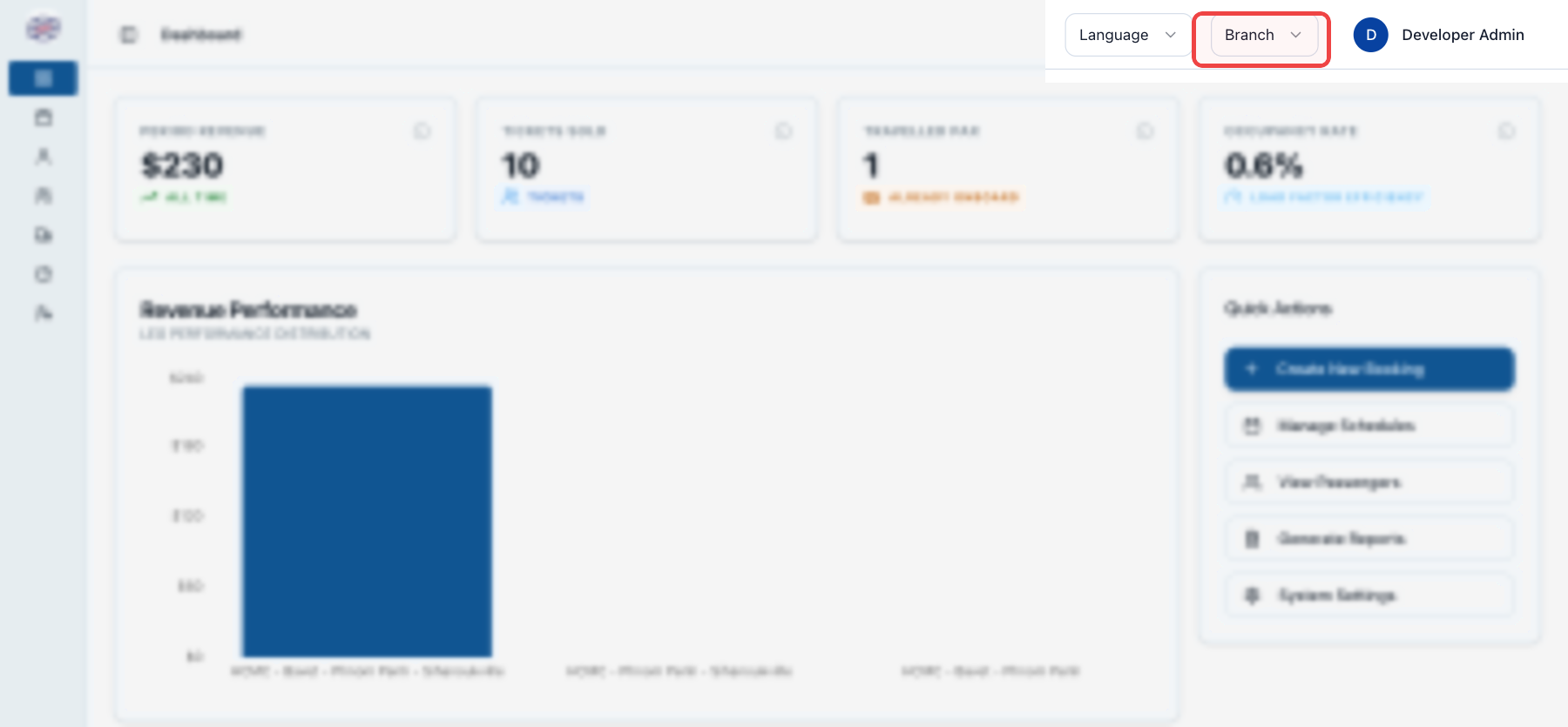
Always confirm your assigned branch in the top bar before issuing tickets. Ticket sales, seat manifests, and cash drawer reconciliations are tied strictly to that station terminal.
Understanding Dashboard Metrics
The cards along the top provide real-time totals across your workspace:
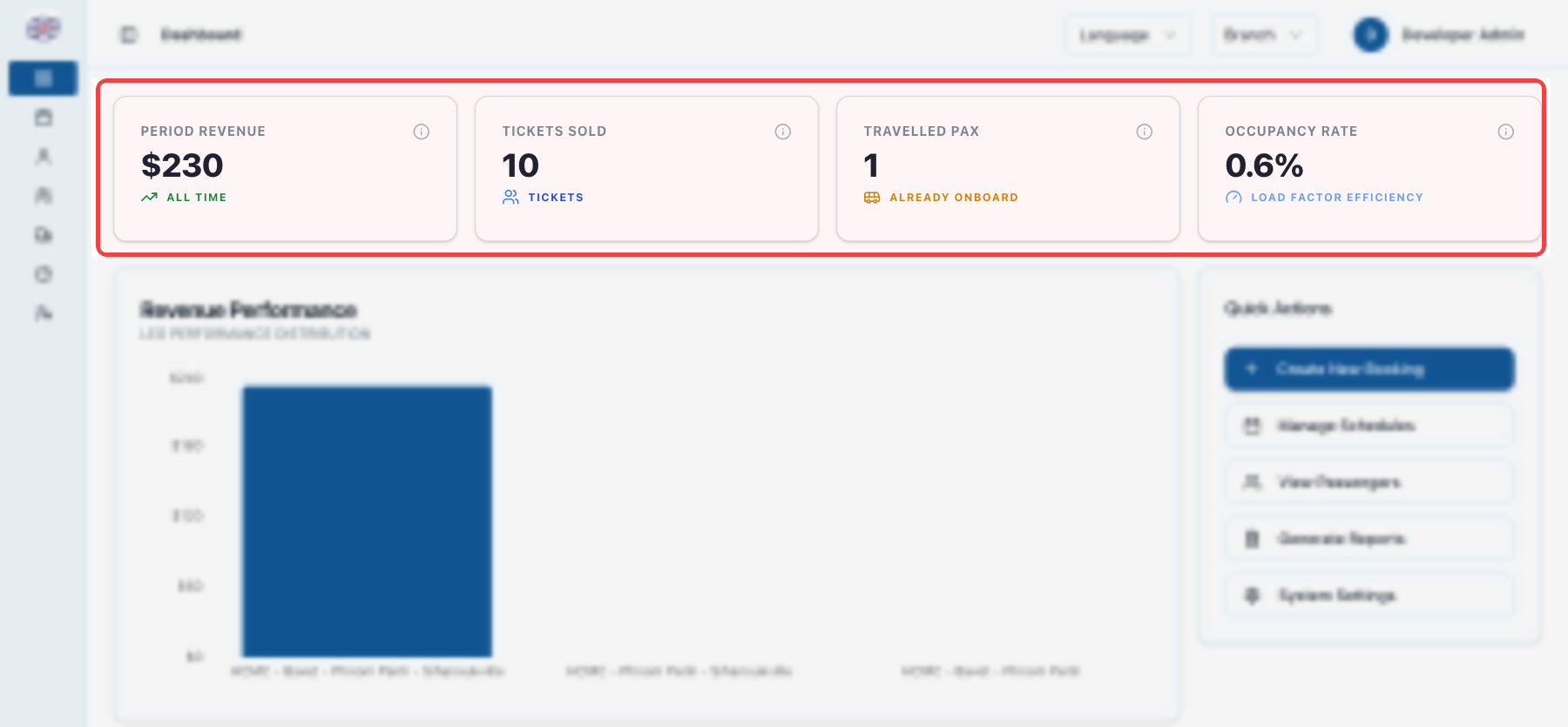
Occupancy rate reflects filled seats across upcoming scheduled departures. If occupancy exceeds 85% on peak travel corridors like Phnom Penh — Siem Reap, alert your station dispatcher to schedule supplementary relief buses.
Route Performance Trends
Below the metric cards, the Revenue Performance bar chart compares earnings across active travel corridors.
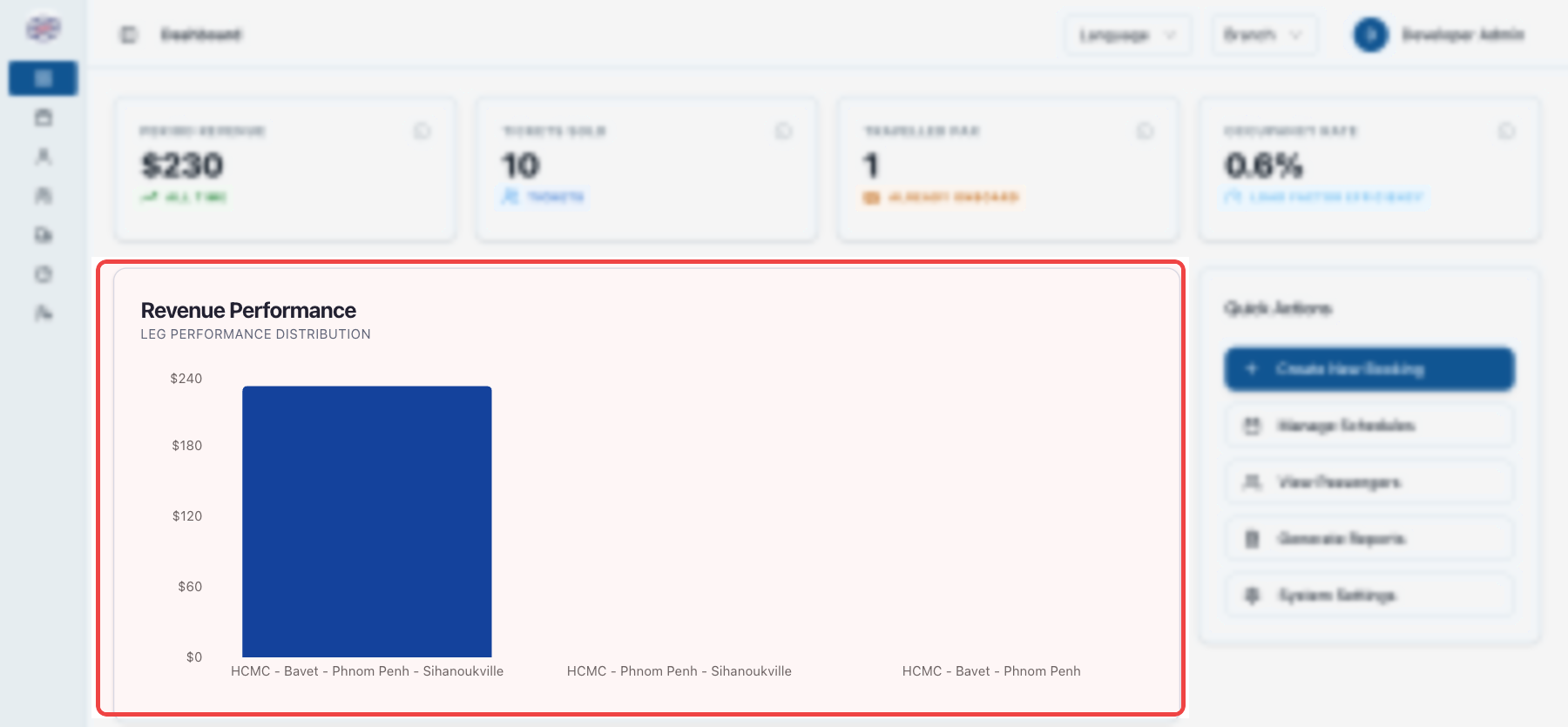
- Compare Corridors: Easily see which routes generate the highest ticket demand (such as Phnom Penh — Sihanoukville on Friday evenings).
- Inspect Numbers: Hover your mouse over any bar to view the exact revenue dollar amount and total passenger tickets sold on that corridor.
- Spot Low-Performing Trips: Trips running below 30% occupancy can be identified early so marketing or schedule adjustments can be made.
Quick Action Shortcuts
The Quick Actions toolbar provides one-click shortcuts to frequent tasks:
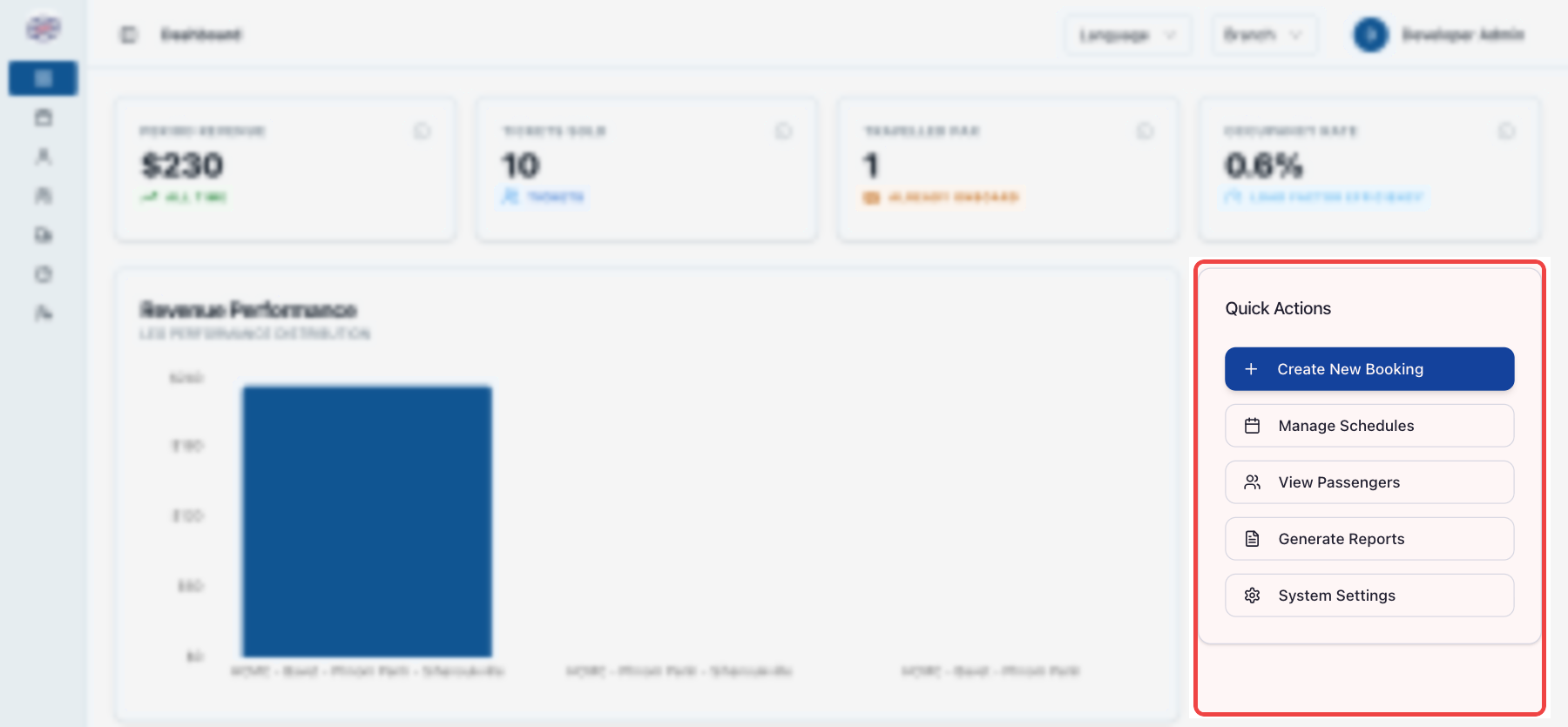
- Create Booking: Jump directly to trip search and seat selection to sell a ticket to a walk-in passenger.
- Manage Schedules: Open departure timetables, calendar templates, and bus assignments.
- View Passengers: Access passenger manifests and customer contact rosters for boarding calls.
- Generate Reports: Open the daily cash drawer reconciliation and settlement reports.
Live Booking Audit Feed
The Booking Audit Trail table at the bottom of the screen updates in real time as tickets are sold, modified, or cancelled across all counters and partner agencies.
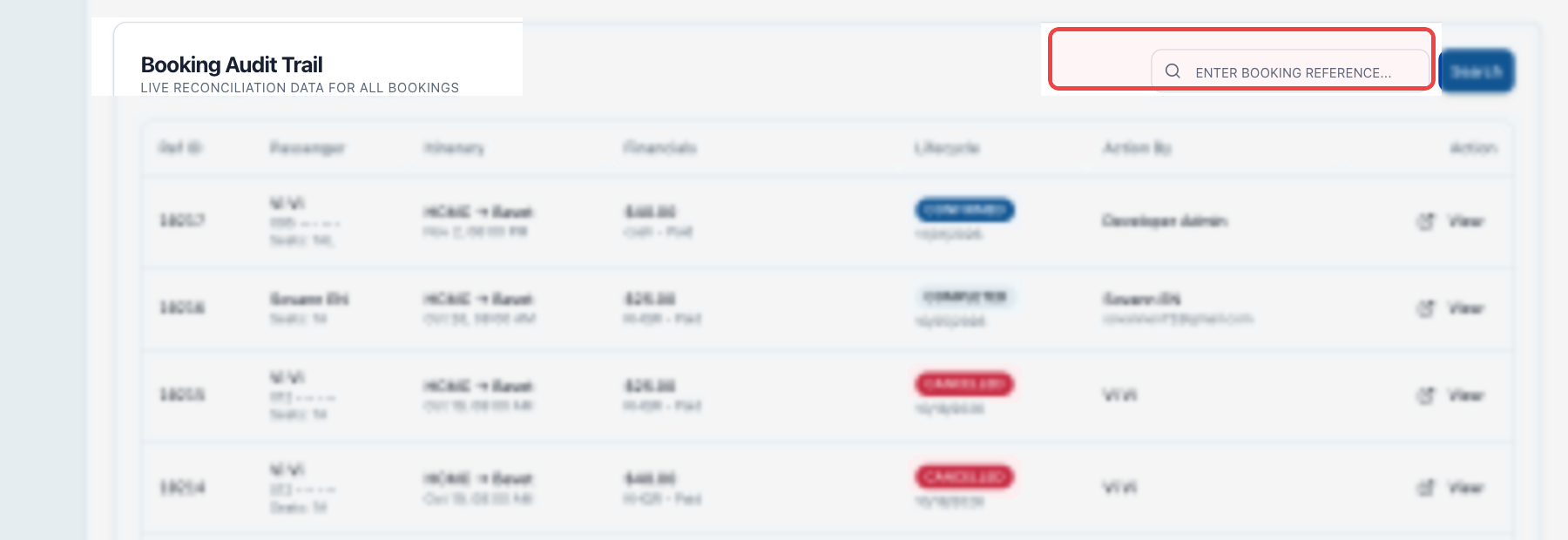
- Search by Reference: Enter a booking reference code (e.g.,
BK-8921) to immediately open that customer's ticket details. - Track Status: Spot reservations marked as Pending Payment that need to be collected before departure.
- Audit Staff Actions: See exactly which ticket seller or agency issued each reservation.
Frequently Asked Questions
Why does my revenue show $0 at the start of the morning?
The dashboard defaults to today's date starting from midnight. As counter staff issue their first tickets or online bookings confirm, the cards update automatically.
Why do my sales numbers look lower than the company total?
If your staff account is assigned to a specific branch (such as Battambang Branch), your dashboard automatically filters to show only departures and ticket sales from your location. Only Head Office administrators see company-wide totals.
Do I need to refresh the page to see new bookings?
No. The dashboard stream updates automatically when tickets are issued, seats are cancelled, or payments are processed.